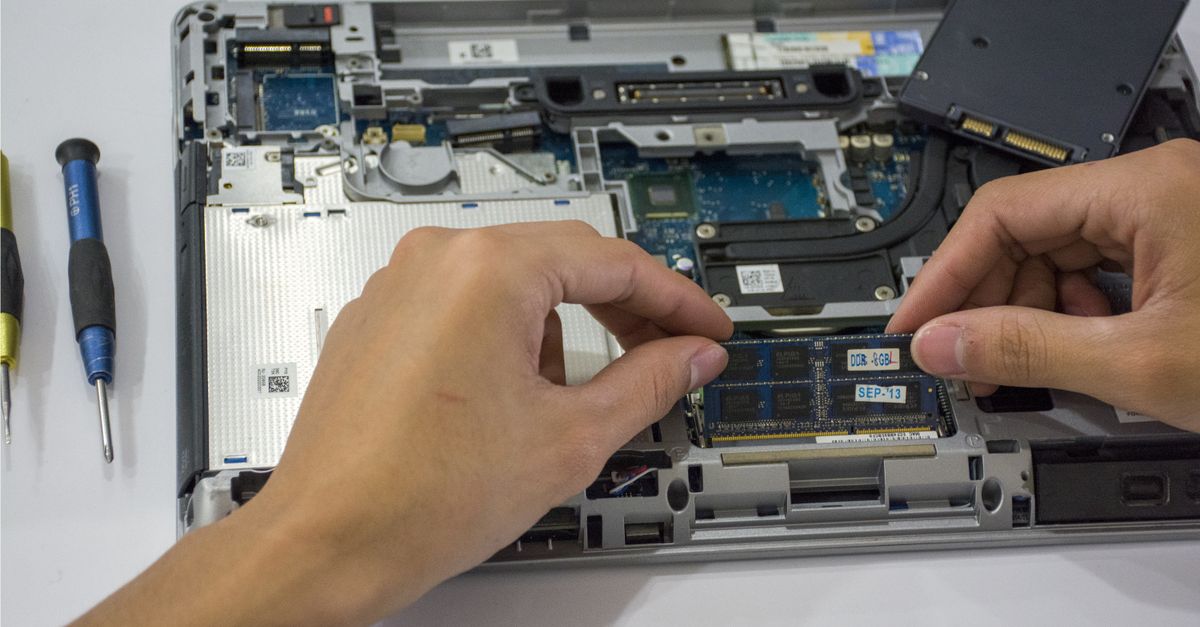
Understanding Common Motherboard Issues in PCs
Table Of Contents
BIOS and Firmware Glitches
BIOS and firmware glitches can disrupt a computer's functionality, causing issues such as boot failures or unexpected system behaviour. These errors can stem from various sources, including interrupted updates, incorrect settings, or bugs in the software. As the motherboard serves as the central hub for all components, any faults within the BIOS can lead to significant problems in the overall performance of the PC.
Recovering from these errors often involves resetting the BIOS to its default settings. This can be achieved by using a jumper on the motherboard, removing and reinserting the battery, or through specific key combinations during startup. Users may also consider reinstalling or updating the BIOS firmware if the glitches persist. Regularly checking for updates and ensuring proper handling during updates can reduce the likelihood of encountering such issues.
Recovering from BIOS Errors
BIOS errors can be frustrating, but there are several methods for resolving them. One effective approach involves resetting the BIOS to its default settings. This can often be achieved by locating the jumper on the motherboard and following the manufacturer’s instructions. Alternatively, removing the CMOS battery for a short period can reset the stored settings, restoring normal functionality.
If resetting fails to address the issue, an update may be necessary. Accessing the motherboard manufacturer's website will provide the latest BIOS version and instructions for downloading and installing it. Care should be taken during the update process, as an unsuccessful update has the potential to render the motherboard inoperable. Following guidelines closely reduces risks and improves the chances of a successful recovery.
Damage from Physical Impacts
Physical impacts can pose a significant risk to motherboards, often resulting in malfunctions or complete failure. Common situations leading to such damage include accidental drops or knocks during installation or transport. Even a light impact may cause solder joints to crack or components to dislodge from their positions. Identifying the symptoms of impact-related damage can be challenging, as they may manifest as erratic behaviour or failure to boot.
Assessing the integrity of the motherboard after an incident requires careful inspection. Look for visible signs of damage, such as bent or broken pins and a warped board. Additionally, ensure that all internal connections are secure and that no components have come loose. If there are no obvious damages but issues persist, it may be beneficial to seek professional diagnostics to determine the impact on the motherboard's functionality.
Assessing Impact-Related Damage
Physical impacts can lead to significant issues for a motherboard. When a PC experiences a drop or strong jolt, the internal components may shift or crack. Checking for visual signs of damage is crucial. Look for any bends, cracks, or broken solder joints. A damaged chipset can cause system instability, making it essential to assess the extent of the problem carefully.
Testing the motherboard after an impact is important for understanding its functionality. Booting the system and monitoring for errors can provide insight into any underlying issues. If the PC fails to start or exhibits erratic behaviour, further diagnostic tools may be needed. In some cases, professional repair services might be required to properly evaluate and rectify the damage. A thorough assessment can help determine whether the motherboard is salvageable or needs replacement.
Corrosion and Moisture Damage
PC motherboards are particularly susceptible to corrosion and moisture damage, given their intricate networks of circuits and components. Exposure to humidity or liquid spills can lead to the development of rust and other corrosive reactions, which may compromise the functionality of critical parts. Even minor moisture intrusion can cause short circuits, leading to erratic behaviour or complete system failure. It is crucial to maintain a dry environment around computing devices to mitigate these risks effectively.
Preventive measures include using desiccants to absorb excess moisture in PC cases or implementing proper ventilation in environments prone to dampness. Regular inspections of the motherboard can help identify early signs of corrosion, such as discolouration or residues on components. By addressing any moisture issues promptly and ensuring that the setup is optimally conditioned, the lifespan of a motherboard can be significantly extended while maintaining reliable performance.
Preventing and Addressing Corrosion Issues
Corrosion can significantly compromise a motherboard’s functionality, making prevention and early intervention crucial. To reduce the risk of moisture-related damage, proper environmental control is essential. Keeping the computer in a dry, climate-controlled space can help minimise humidity levels. Using silica gel packets or other desiccants inside the case further aids in moisture absorption. Regularly inspecting the internal components for signs of corrosion and implementing preventative measures can save valuable time and resources in the long run.
When corrosion has already set in, taking immediate action is vital. Gentle cleaning with isopropyl alcohol can remove light corrosion on contacts and connectors. A soft brush may assist in dislodging debris without causing additional damage. In cases of severe corrosion, replacing affected components might be necessary to restore functionality. Ensuring that connections remain secure and free from moisture after cleaning can also enhance the longevity and reliability of the motherboard.
FAQS
What are the common signs of BIOS and firmware glitches?
Common signs of BIOS and firmware glitches include system boot failures, random freezes or crashes, and error messages upon startup. You might also notice unusual behaviour, such as hardware not being detected or configurations not saving.
How can I recover from BIOS errors?
To recover from BIOS errors, you can try resetting the BIOS settings to default, using a recovery tool available from your motherboard manufacturer, or, in severe cases, flashing a new BIOS version. Always ensure you have a backup of important data before attempting any recovery.
What should I do if my motherboard has suffered physical damage?
If your motherboard has suffered physical damage, first disconnect all power sources. Then, visually inspect it for cracks or burnt components. If any damage is found, it's advisable to consult a professional technician for repairs or consider replacing the motherboard if the damage is extensive.
How can I assess impact-related damage to my motherboard?
To assess impact-related damage, carefully inspect the motherboard for visible cracks, dents, or discolouration. Additionally, check if all connections are secure and test the system for any irregular behaviour, such as failure to boot or sporadic performance issues.
What steps can I take to prevent corrosion and moisture damage to my motherboard?
To prevent corrosion and moisture damage, ensure your PC is kept in a dry environment, use silica gel packets in your PC case to absorb moisture, and regularly check for signs of corrosion. If you live in a humid area, consider using a dehumidifier to maintain optimal conditions.
Related Links
How to Choose the Right Replacement MotherboardTips for Diagnosing Motherboard Failures
Exploring the Latest Trends in Motherboard Technology
Motherboard Compatibility: What You Need to Know
Preventive Measures for Extending Motherboard Lifespan